Pocket PDF
Made for your everyday documents

Big ideas.
Small pocket.

Make every PDF easier to work with. Read, annotate, edit and organize your documents, wherever the day takes you.

Download on theApp Store

For iOS. No account required.

PDF

A little more
organized.

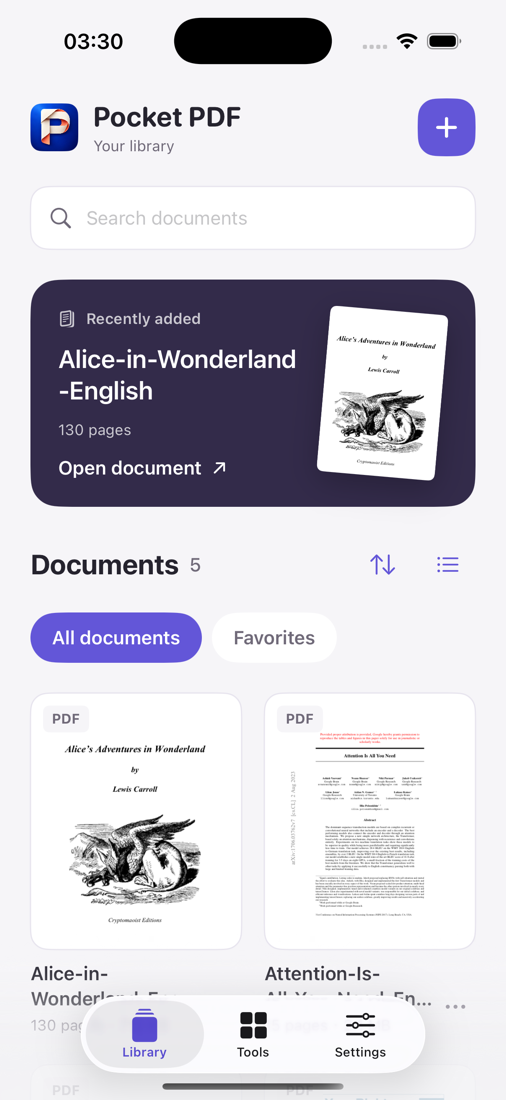
Pocket PDF document library on iPhone
✓Everything in its place.
Read with focusMake your markKeep it organizedProcess on device

Less busywork.
More possibility.

A thoughtful set of tools for the documents you actually work with. All together, right in your pocket.

✎

Read. Think. Make a mark.

Find your way with outlines and search. Highlight what matters, add a note or sketch an idea. Pick up where you left off.

A note worth keeping

Room for your ideas.

Good documents don’t just hold information.
They give us something to think about.

Come back to this.
T|

The right words. Right here.

Fix a detail or update a sentence in supported PDFs. Edit the text and save your changes without leaving your document.

Text editing
Make room for better ideas.
BIUAa✓ Saved
▤

A place for every page.

Merge documents, split page ranges, rotate or reorder pages. Turn a collection of images into one tidy PDF.

⌗

Find the words in the image.

Recognize text with on-device OCR and search it using a saved index. Give scanned documents a more useful second life.

Ideas worth finding.

Your documents.
Your space.

PDF processing and text recognition happen on your device. Start without creating an account, and choose where your files go when you export or share.

Exported copies and system backups are managed separately.

A little help?
Right this way.

A few useful answers before you get back to your documents.

Need a hand? Email our support team.

support@cera.hk
Do I need an account?

No. You can import documents and organize your library without creating an account.

Can I edit any PDF?

Text editing depends on the PDF’s text layer, fonts and layout. Some documents may not support editing. Keep a copy of your original before making important changes.

Does OCR make scanned text editable?

OCR recognizes text and creates a searchable index. It does not automatically turn the original scanned image into editable PDF text.

How do I restore a previous purchase?

Open Settings in Pocket PDF and choose Restore Purchases. Use the Apple Account that made the original purchase.

What should I include in a support request?

Include your app version, iOS version, device model and steps to reproduce the problem. Add a screenshot if useful, and remove private information. Please don’t send confidential documents.

Pocket PDF icon

A better day for your PDFs.

Your next read. Your next idea. All in your pocket.

Download for iOS